For Mac
Determa Capture for Mac
Use Determa Capture when you're seeing patients by video. It records your microphone and the patient audio from your Mac, then uploads the visit so Determa can draft the note. It stays out of the way at the top of your screen, ready when the next visit starts.
v1.0 (138) · 4.3 MB · macOS 14.4+
Last updated August 31, 2026
Optional: verify your download
You don't need to do this. It's here for IT teams that check a download before installing it.
SHA-256 for v1.0 (138):
7bd237c4f2ce21baf2d6947dd7014942bfdedddcdb5c35dd2f9f1c346119283dIn Terminal, cd to the folder you downloaded to and run:
shasum -a 256 determa-latest.dmgThe output should match the line above. If a newer version has shipped since, check the version numbers match before treating a mismatch as a problem.
Checked by Apple for malware, so macOS can open it normally.
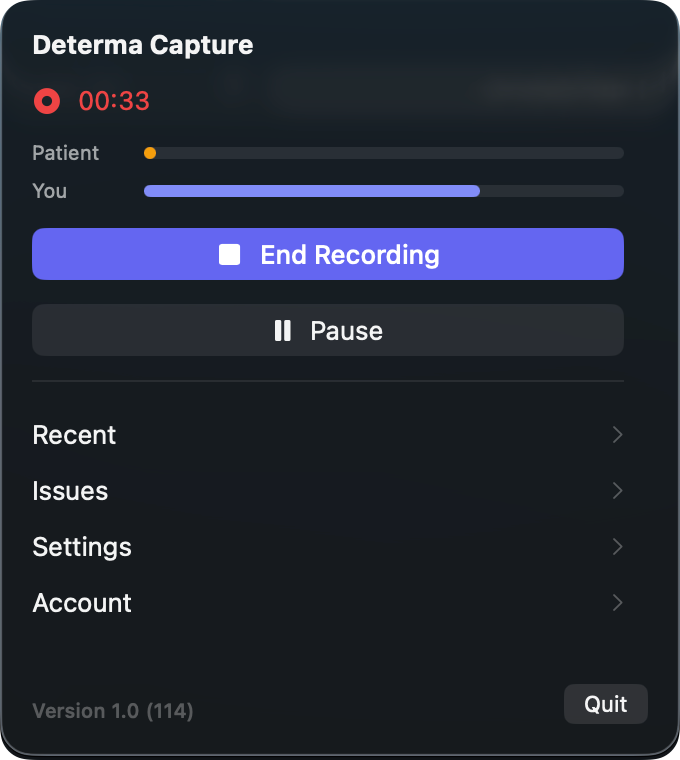
Determa Capture lives in the top-right of your Mac screen.
When to use this
Determa Capture works for video visits, in-room visits, and dictation from your Mac. For in-room visits, you can also record in the browser if you prefer not to install anything.
Video visits
Record your microphone and the patient audio from your Mac.
Dictation
Use Determa Capture when you want to dictate from your Mac.
In-room visits
Use Determa Capture, or record in the browser with no download.
Before you download
- macOS 14.4 or later
- To check: Apple menu › About This Mac.
- Any Mac from recent years
- One download works on both Apple Silicon and Intel Macs.
- A Determa account
- The same email and password you use on the website.
- An internet connection
- Recordings upload on their own once you finish.
First-run setup
Installing takes about a minute and you only do it once.
- 1
Open the file you downloaded
Double-click it, then drag Determa Capture into Applications.
- 2
Open Determa Capture
Open Determa Capture from Applications. If your Mac asks whether to open it, choose Open. That's expected the first time.
- 3
Sign in
Use the same email and password you use for Determa on the web.
- 4
Look at the top of your screen
Determa Capture has no window and no icon in the Dock. Look for the Determa icon in the row of small icons at the top right of your screen. That's where you start and stop recording.
Your Mac asks for audio permissions the first time they are needed, not during install. Approve the microphone for every recording. For video visits, approve system audio too, so Determa Capture can record both sides of the visit.
Stuck during setup? Email support@determa.co.
As with any recorded visit, follow your practice's consent process and local recording laws.
Audio permissions
The first time you record, macOS asks for the audio access Determa Capture needs. Approve Microphone for your voice. For video visits, approve Screen & System Audio Recording for the patient audio. Dictation only needs the microphone. Determa Capture does not record your screen.
- Microphone
- Records your side of the conversation. Your Mac asks the first time you start any recording. Change it later under System Settings › Privacy & Security › Microphone.
- System audio
- Records the patient's side of a video visit from the sound coming out of your Mac. A dictation never asks for this. Change it later under System Settings › Privacy & Security › Screen & System Audio Recording. That page covers screen recording too, but Determa Capture only ever uses the audio half. It never records your screen.
- Notifications
- Optional. Determa Capture can offer to start recording when a video call begins and stop when it ends. Decline it and everything else works the same. Change it later under System Settings › Notifications › Determa.
Launch at login
This one is never a prompt, and it's off until you turn it on. It's a toggle in the app's own Settings. Switching it on adds Determa Capture to System Settings › General › Login Items, where you can remove it again at any time.
What it never asks for
Determa Capture only records audio: your microphone, and during video visits, the sound from your Mac. It does not use your camera, record your screen, read your files, control your Mac, or ask for contacts, calendar, location, or screen recording.
Troubleshooting
Most setup issues come down to permissions or opening the app from Applications.
The recording is silent
This is almost always a missing permission. Check that Determa Capture is switched on under System Settings › Privacy & Security › Microphone, and, if you were recording a visit, under System Settings › Privacy & Security › Screen & System Audio Recording as well. Quit and reopen the app after changing either one.
I cannot find the app after installing it
Determa Capture has no window and no icon in the Dock. The small icon at the top right of your screen is the whole app. If it isn't there, open Determa Capture again from your Applications folder. If you opened it from the download window without dragging it into Applications first, quit it, drag it across, and open it from there. If the top-right row is crowded, macOS may hide some icons. Open Determa Capture from Applications again.
Recordings are not showing up in Determa
Recordings upload in the background and appear on the recordings page once transcription finishes. Check that you are signed in to the right account and that your Mac is online.
Need help?
Email support@determa.co or see our support page.